Install the Application Template Core solution
Copy the ApplicationTemplate.wsp file into the bin folder
Open up a command prompt and cd to the bin folder (so you run the command from within the bin folder)
Then run the command:
stsadm -o addsolution -filename ApplicationTemplate.wsp
Then:
stsadm -o deploysolution -filename ApplicationTemplate.wsp –allowgacdeployment
stsadm -o copyappbincontent
Install a template
Copy that template to BIN folder of C:\Program Files\Common Files\Microsoft Shared\web server extensions\12\Bin
Then run the command:
stsadm -o addsolution -filename Templatename.wsp
Go to at Central Administration > Operations > Solution Management
Click on your template and then click Deploy Solution and then OK !! for applicationtemplatecore.wsp too so site we can create !!
Thanks And Regards,
Dipti Chhatrapati
For my client’s site, they were not interested in My Site and My Links for the first phase. Below are the steps I followed to remove the two links:
- Log into Central Administration.
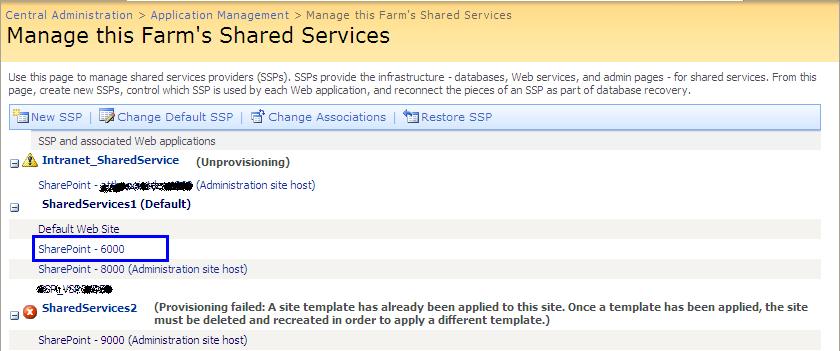
- Under Shared Services Administration in the Quick Launch bar, select the one running My Sites.
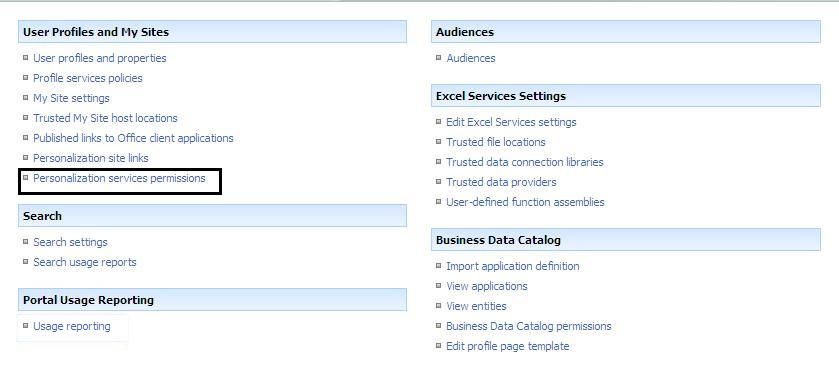
- In the “User Profiles and My Sites” group, click on the “Personalization services permissions” link.
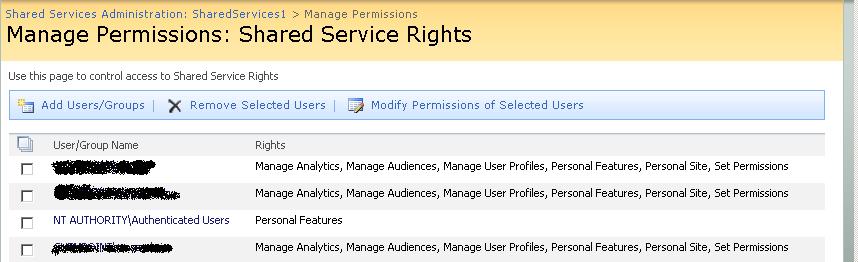
- For those users you want to remove the personalization functionality, click on the user name (for example, NT AUTHORITY\Authenticated Users).
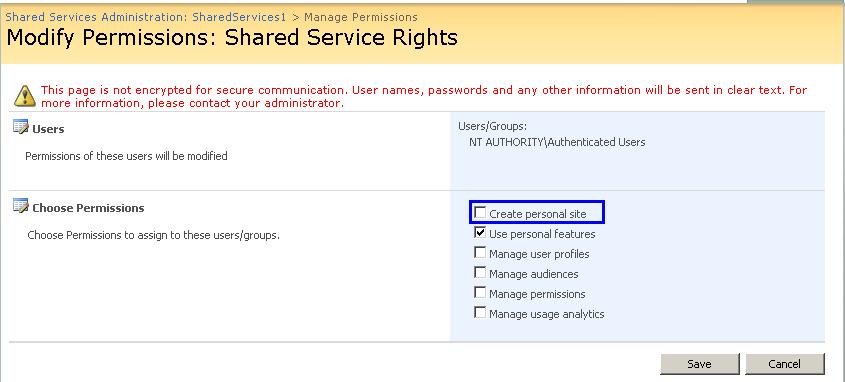
- On the “Modify Permissions: Shared Service Rights” page, uncheck “Use personal features”. Click OK to save.
- I had to shut down my browser and log in again to see my changes.
Note 1: I read on a few blog posts that on the “Modify Permissions: Shared Service Rights” page, “Create personal sites” pertains to My Sites and “Use personal features” pertains to My Links. I could not uncheck all permissions. Unchecking “Use personal features” appeared to modify both My Site and My Links permissions.
Note 2: If you do not change the Administrator user, you will see My Site and My Links displayed. If you don’t want to see them when you log in as an administrator, change the administrator’s permissions.
Note 3: As far as #6 above, this isn’t required. A timer job runs which will switch all authenticated users. Be patient.
This post helps you to disable the My Site Link that is at the top of SharePoint site based on the rights of logged in user.
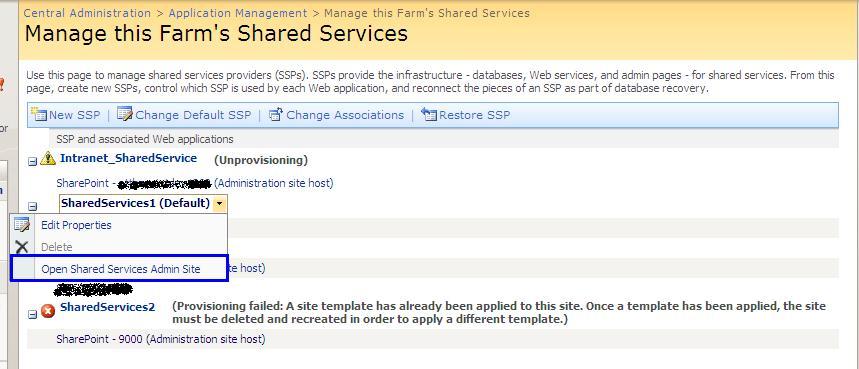
Open the  Shared Services Administration Link from the Central Administration page.
In the Manage shared service page select the shared service to which your site for which you need to manage the My Site Link is mapped.In the below fig I am trying to manage My Site Link for Site SharePoint – 6000,So I am selecting the Shared Services1.
In the Shared Admin page select the link Personalization Services Permissions Link present in the User Profiles and My Sites Section.
Select the user group for which you want to enable or disable the My Site Link Permission.
Check or Uncheck the Create Personal Site Check box to Manage the Rights.
Thanks And Regards,
Dipti Chhatrapati